
MY GEAR: Android homescreens
I think it’s time to introduce you all to how I’ve customised my phone to work for me. I haven’t rooted the device, so everything I’ve done, you can do too (so long as you’re running Android 4.0+). This post will lead on to a series where I review my favourite apps, but for now all I’m going to do is to introduce you to my homescreens, lockscreen and pull-down status bar.
The lockscreen
I have an HTC Sensation, so I’ve been using the HTC Sense 3.0 lockscreen since I got the phone (I think that the shortcuts that you can pull into the unlock ring to launch were a great idea). I wasn’t satisfied with the HTC widgets that would display above it though, so I eventually sprung for WidgetLocker so that I could see my favourite widgets without having to unlock the phone. Thanks to WidgetLocker’s choice of themes, I could even keep the Sense 3.0 look AND add a further two shortcuts.

The widgets, from top to bottom, are: the WidgetLocker lockscreen clock widget; Simple Calendar Widget and Aix Weather Widget. The shortcuts, from left to right, are phone, GMail, Twitter, Pocket, Messages and Camera. Pocket is probably my favourite app and I definitely recommend that you check it out. I’ll do a more thorough review of it somewhere down the line, probably with a video.
Notification panel
This is the stock notification bar that comes with Sense 3.0, but I use a few apps that have persistent notifications that I’ll go through.
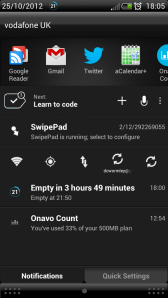 First up is my mobile to do list app, Any.Do. It’s not as cool as Taskk, which I wrote about the other day, but it’s nicely designed and syncs with the web and a Chrome extension. From the persistent notification you can see what’s next on your list, add a new task (by either text or voice) or go into the app’s settings. Having what you need to do next right there is pretty useful for keeping you on your toes. Next is SwipePad, which lets me set up hotspots on my screen (I use the top left corner) for a grid of apps that I want to be able to access quickly from anywhere in the phone. The default number of apps you can have in that grid is 12, but I bought the MoreSpace add-on and use 15. I can’t tell you how useful it was when I had to deal with HTC Sense’s constant crashes before I switched to Apex Launcher (more on that later).
The next bar is a quick settings bar from 1Tap Quick Bar that I set up so that I didn’t have to flick over to the quick settings bar every time. The Sense overlay on Ice Cream Sandwich (Android 4.0) also doesn’t have an easily-accessible wi-fi toggle or sync controls, so having the power to choose a set of more useful and more powerful quick controls really makes my life easier.
The battery indicator you see under that is Battery Widget? Reborn! Pro (stupid name, I know), and you get a couple of choices on what information to display in the bar in the settings. You’ll get to see the widget itself on my homescreen below. Battery life on my phone isn’t great, so the data on how much time and what percentage of the battery I have left can be real lifesavers. If you look up to the notification bar, you’ll see a little notification that shows the percentage of charge remaining.
Finally, Onavo Count displays a notification to let me know how much of my data allowance for the month I’ve managed to blow through so far. Ice Cream Sandwich has built-in data usage monitoring, but I find Onavo to be a bit more powerful so I kept it after upgrading from Gingerbread (2.3.4) to Ice Cream Sandwich (4.0.3).
Homescreens
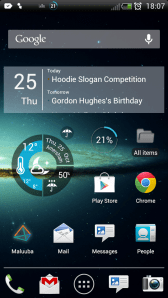 You’ll notice that this isn’t HTC Sense. I dumped that for a third-party launcher around the beginning of this year, as it was constantly crashing and having to restart, wasting 10-30 seconds of my life every time I wanted to go to the home screen. I used Go Launcher EX until I got the update to ICS in March/April, when I switched to Apex Launcher, which is only compatible with Android 4.0+. Both are great, and Apex makes your home screens and app drawer look like stock Android. It’s incorporated a few things from Android 4.1 (Jellybean) since the new OS was unveiled over the summer, which is why I have the frosted white Google search bar at the top of the screen rather than the ICS one, which is a transparent box with solid white outline. The latest version also moves things out of your way for you when you’ve moving something else around the home screen, just like in Jellybean. It makes having to wait for an actual update a lot more bearable.
Below the search bar is Simple Calendar Widget again, albeit with some different customisations (you can tap the right-hand-side of the widget to access its settings). Underneath that, on the left, is a widget from 1Weather, a very nice weather app. I have it set to display the the ‘feels like’ temperature and some other information in the status bar/notification panel, but I hadn’t set it when I took the screenshots, so that’s why it’s missing (whoops). As for the widget itself, it displays the current temperature, high temperature, low temperature, chance of precipitation, date and location. You see that little umbrella icon in the top right of the widget? That means that it’s wet outside (the icon flips upside down when you can get away without an umbrella). The icons in the middle show the weather type (it’s dark and cloudy). Not bad for a 2×2 widget, eh?
To the right of that is the Battery Widget? Reborn! Pro widget, which I spoke about above. If you just want a widget on the home screen displaying your remaining battery level in a circle format without the extra battery information when you click through and without the persistent notification, you can save some money by using Circle Battery Widget. That’s what I used before BW?R!P came out, and it does a great job. If you click on it, it takes you to your phone’s own battery statistics. Moving over one space further right is one of Google Reader‘s widgets. I read a lot of RSS feeds, so the unread indicator (not shown here, as I’d read everything) comes in handy.
On the next row down are the Play Store and Google Chrome, neither of which really requires much further comment. The row above the dock, from left to right, has Maluuba, a relatively new voice assistant that I’m going to try to review at some point. From what I’ve seen so far, it’s pretty good, but I don’t really feel like voice actions come in that handy most of the time. Mail, Messages and People are all standard apps and don’t bear saying anything.
My main dock bar contains Phone, GMail, Messages and Camera. I have another two: the first, with Twitter, Pocket, WordPress and Facebook; the second with Dropbox, Chrome, Google Drive and Evernote. All three have the app drawer in the centre of a row of five (see the gallery for screenshots of the other docks).
Now, for my second home screen:
 This one, as you can see, has a bunch of folders containing apps that fulfil different functions. I have a social grouping, photo grouping, media grouping, travel grouping and utility grouping. I won’t go into what’s in each of those right now as it would take forever, but if you have any questions about a particular folder leave a comment and I’ll get back to you.
The widget is Any.Do‘s scrollable, resizeable widget for Android 4.0+. They have some static widgets available too, but I’m using the scrollable one because I can. Below that are Sleep As Android, a highly customisable sleep monitoring and alarm clock app that beats everything else out there, and My Vodafone, which just lets me keep track of my phone, text and data usage.
AirDroid is the left-most icon on the bottom row and allows you to send/receive texts and browse phone contacts, images and data over wi-fi through your computer’s browser, so long as your phone and computer are connected to the same network. My room at home doesn’t get decent wi-fi signal, so I’ve been using MightyText for texting from my computer instead, as all it requires is that both devices have a data connection.
Friday keeps track of where you are and who you’re texting/calling/emailing/Facebooking/tweeting, which might be more than you’re willing to share with an app. I could never keep an effective journal though, so this does it for me passively by logging and organising this information for you. It’s pretty cool. To its right is a 1Tap wi-fi toggle, and in the bottom right-hand corner is Google Goggles, which goes from the mundane (scanning QR codes) to making sense of the visual world (recognising things that you photograph). It’s a really, really smart piece of technology and it’s amazing what it will recognise. If you take a lot of pictures with your phone, you should definitely give this a try.



-

- My lockscreen. Click for full size.
And that’s it! What do you have on your home screens? What are your must-have apps? Do you have any apps that leave persistent notifications in your notification panel? Share your thoughts in the comments, below.

 AlphaQuirky